> ## Documentation Index
> Fetch the complete documentation index at: https://docs.usebracket.com/llms.txt
> Use this file to discover all available pages before exploring further.
# Connecting Hubspot
> Follow these steps to sync an existing Hubspot object
Hubspot is currently in beta. Might be rough around the edges!
## Authenticating Bracket via OAuth
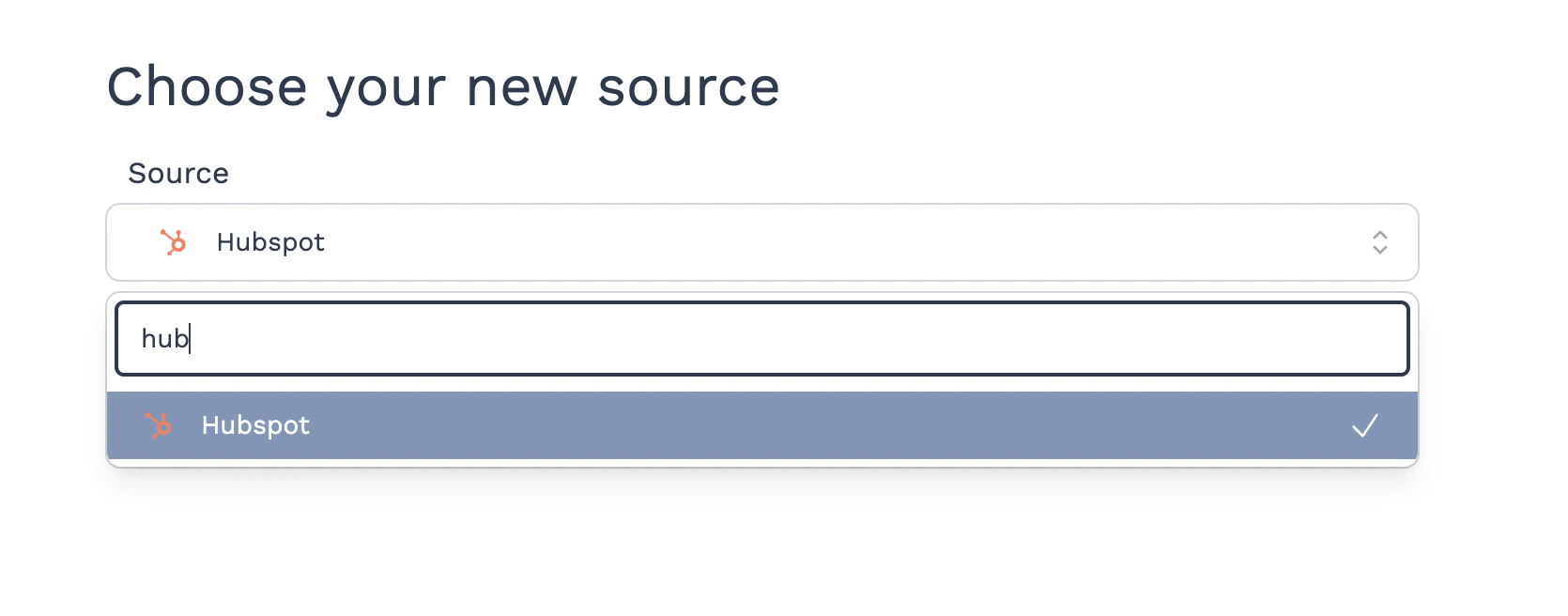
1. On the Bracket web-app, for either the primary or secondary source, select "Hubspot" from the
drop-down.
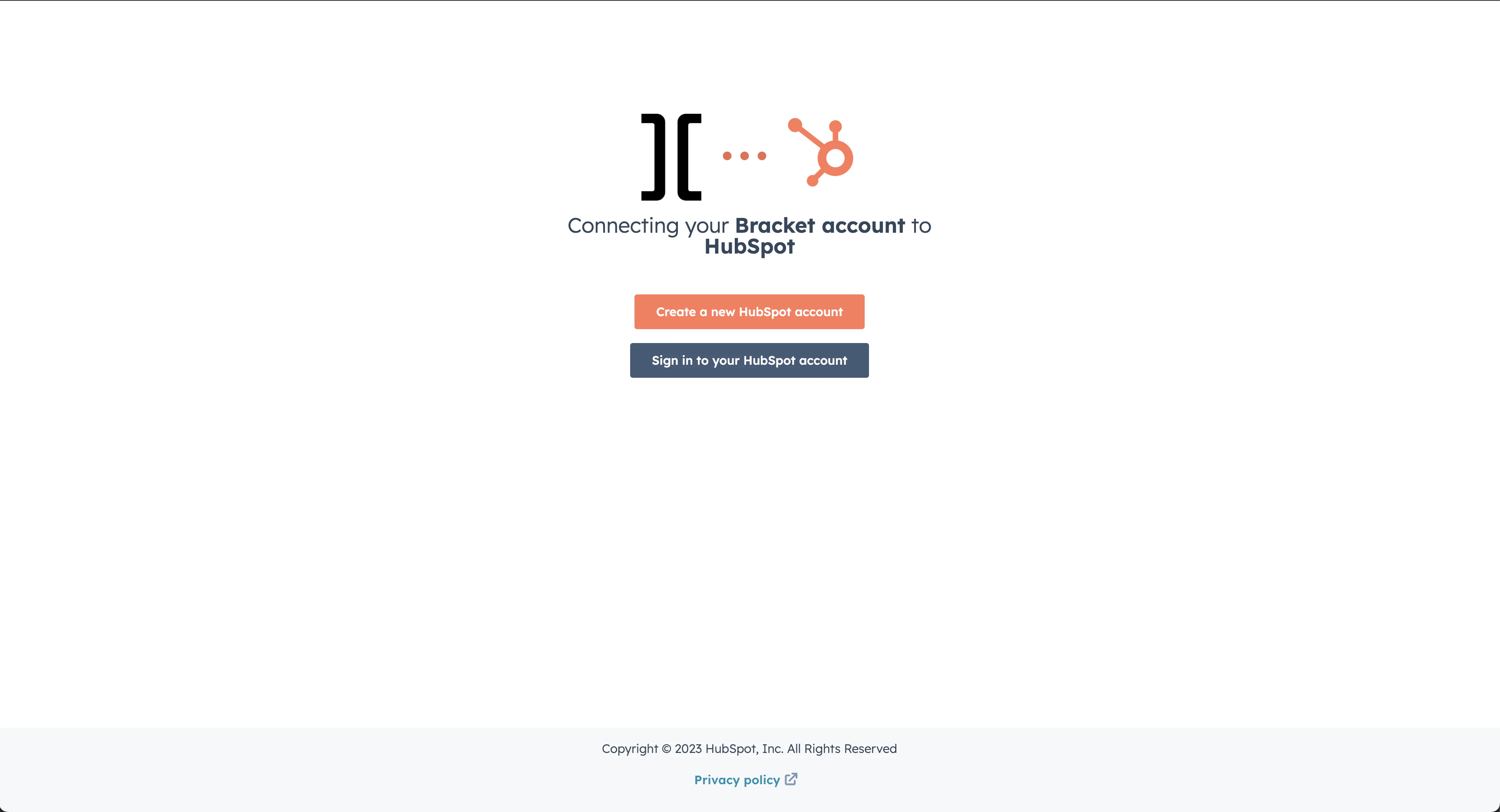
 2. Enter your Hubspot credentials, then click "Next"
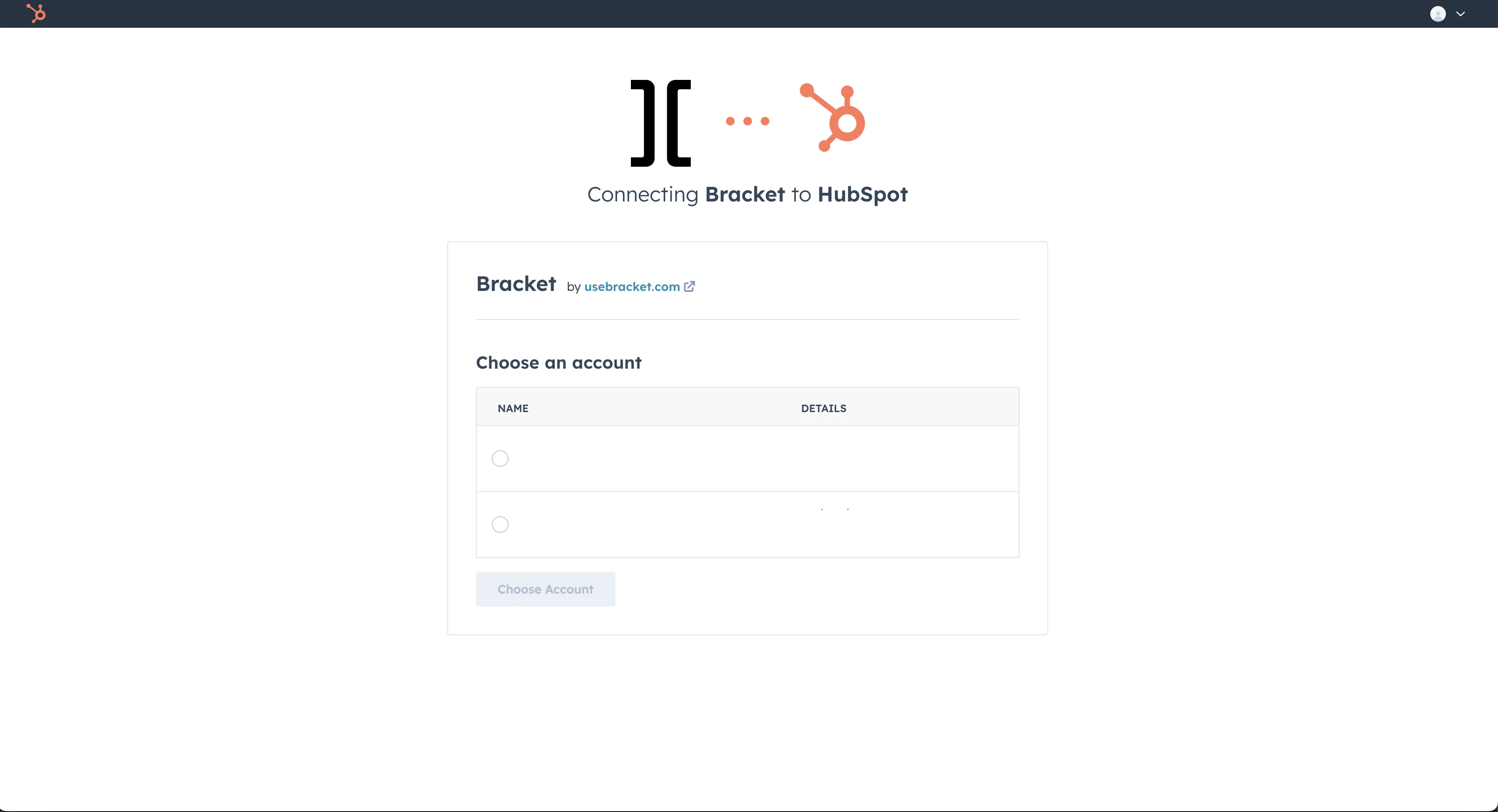
 3. If you have multiple accounts, choose the one that holds the correct data and click "Choose
Account":
3. If you have multiple accounts, choose the one that holds the correct data and click "Choose
Account":
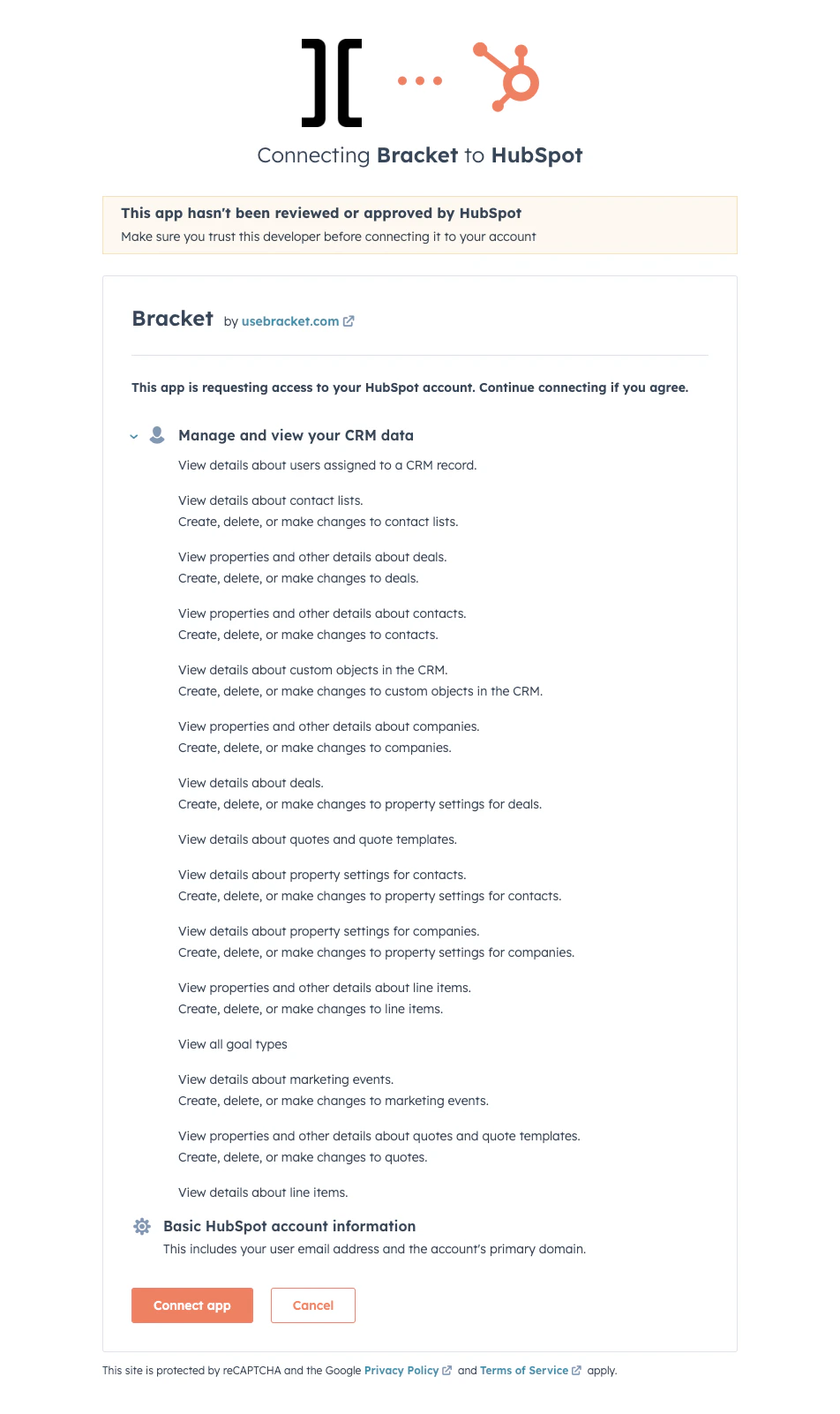
 3. Confirm that Bracket can have permissions to the respective scopes and click "Connect app":
 4. Start syncing:
If you do not see your Hubspot objects immediately, wait a few seconds and refresh the
page
4. Start syncing:
If you do not see your Hubspot objects immediately, wait a few seconds and refresh the
page