> ## Documentation Index
> Fetch the complete documentation index at: https://docs.usebracket.com/llms.txt
> Use this file to discover all available pages before exploring further.
# Connecting Snowflake
> Follow these steps to sync an existing Snowflake table
Snowflake is currently only available on Bracket's [legacy app](https://legacy.app.usebracket.com/)
## Creating your connection URI
1. Gather the following details for a user on your Snowflake warehouse:
1. user
2. account (see below)
3. password
4. warehouse
5. database
6. schema
7. table name
8. primary key
If you are starting with a full connection URI string, it should follow the format below:
```shell Snowflake Connection URI theme={null}
jdbc:snowflake://.snowflakecomputing.com/?
```
2. Enter the details above to the web app at app.usebracket.com
## Finding your account details
Bracket does not need your locator.
1. Log into your snowflake at [https://www.snowflake.com/](https://www.snowflake.com/)
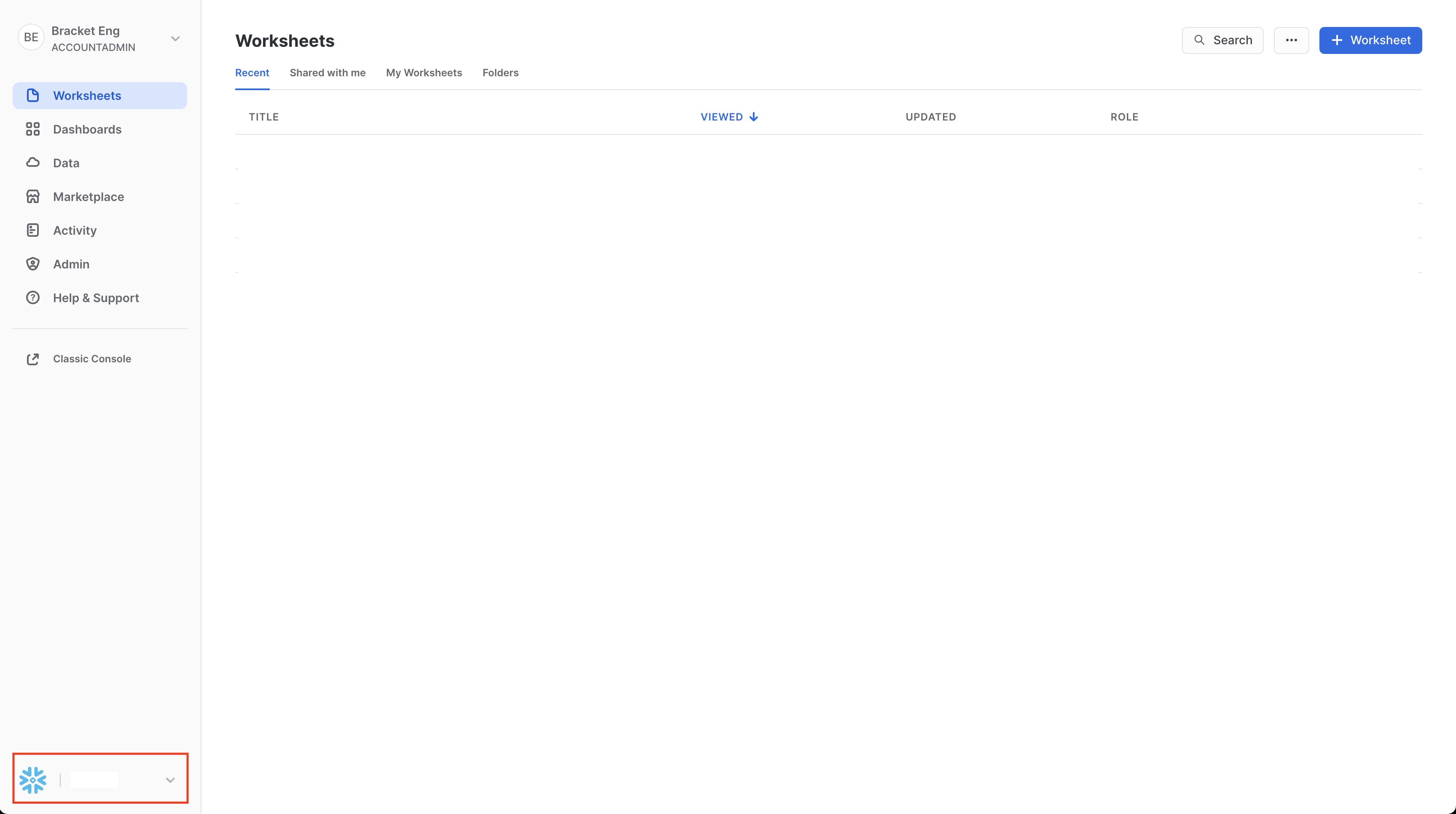
2. Click on the account information in the bottom left corner of the UI
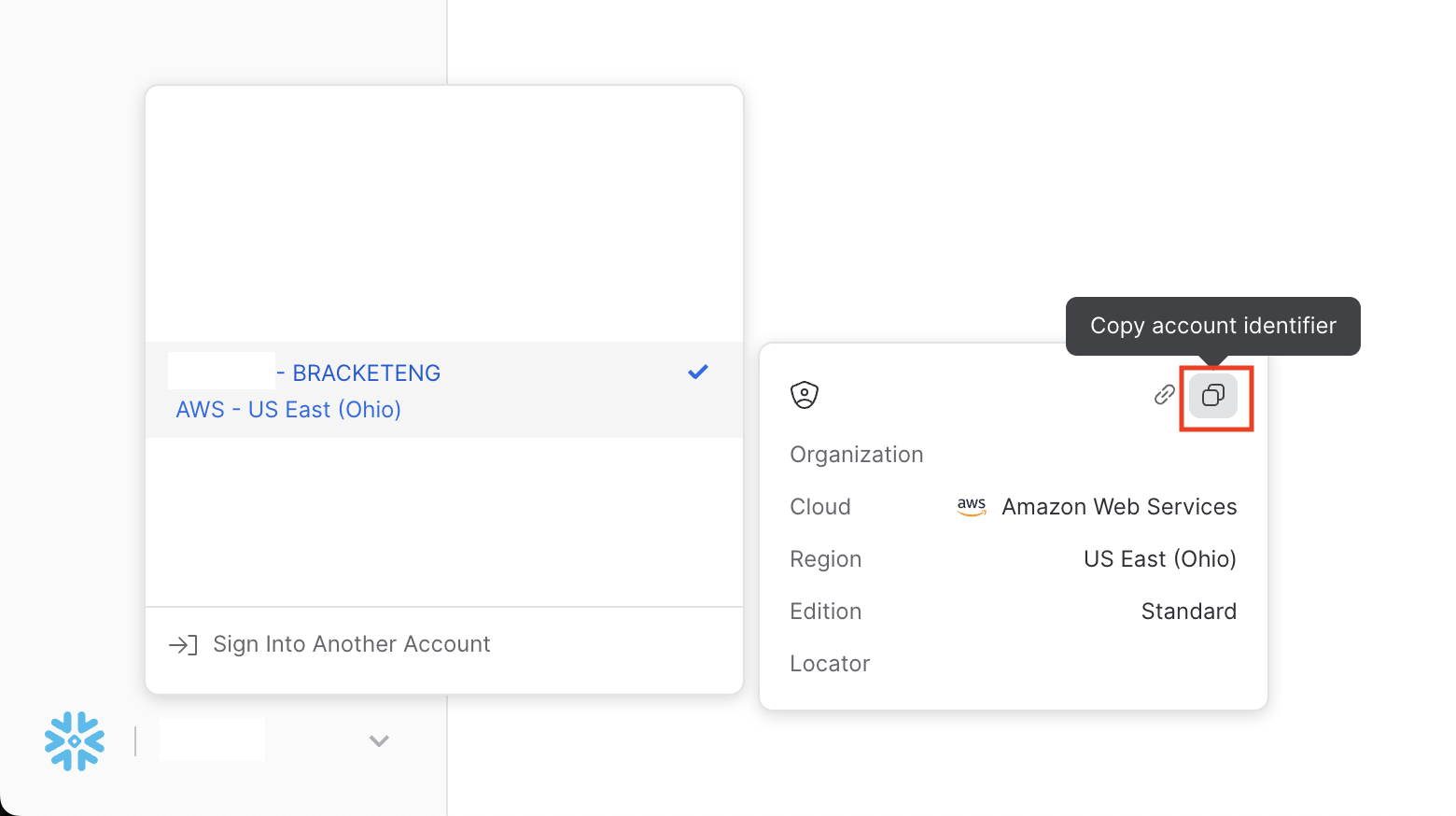
 3. Copy the account identifier as seen in this image