> ## Documentation Index
> Fetch the complete documentation index at: https://docs.usebracket.com/llms.txt
> Use this file to discover all available pages before exploring further.
# Quick Start
> How to set up a connection with Bracket
## Summary
Bracket lets you connect CRMs and databases for two-way or one-way syncs. In this guide, we'll talk through how to get everything connected in a few quick steps.
If you'd like to join a private Slack or Discord group with our team for support or questions, just ping us at [eng@usebracket.com](mailto:eng@usebracket.com)
## 1. Prepare your data sources for the sync
The prerequisites for a successful sync are:
1. Both data sources are set up (i.e., Bracket does not host on your behalf)
2. The secondary data source is empty of data.
Note that if Postgres is your secondary source, you do not need to have a table created before setting up your sync - Bracket can generate it for you.
## 2. Create an account on our web app
Set up your syncs here
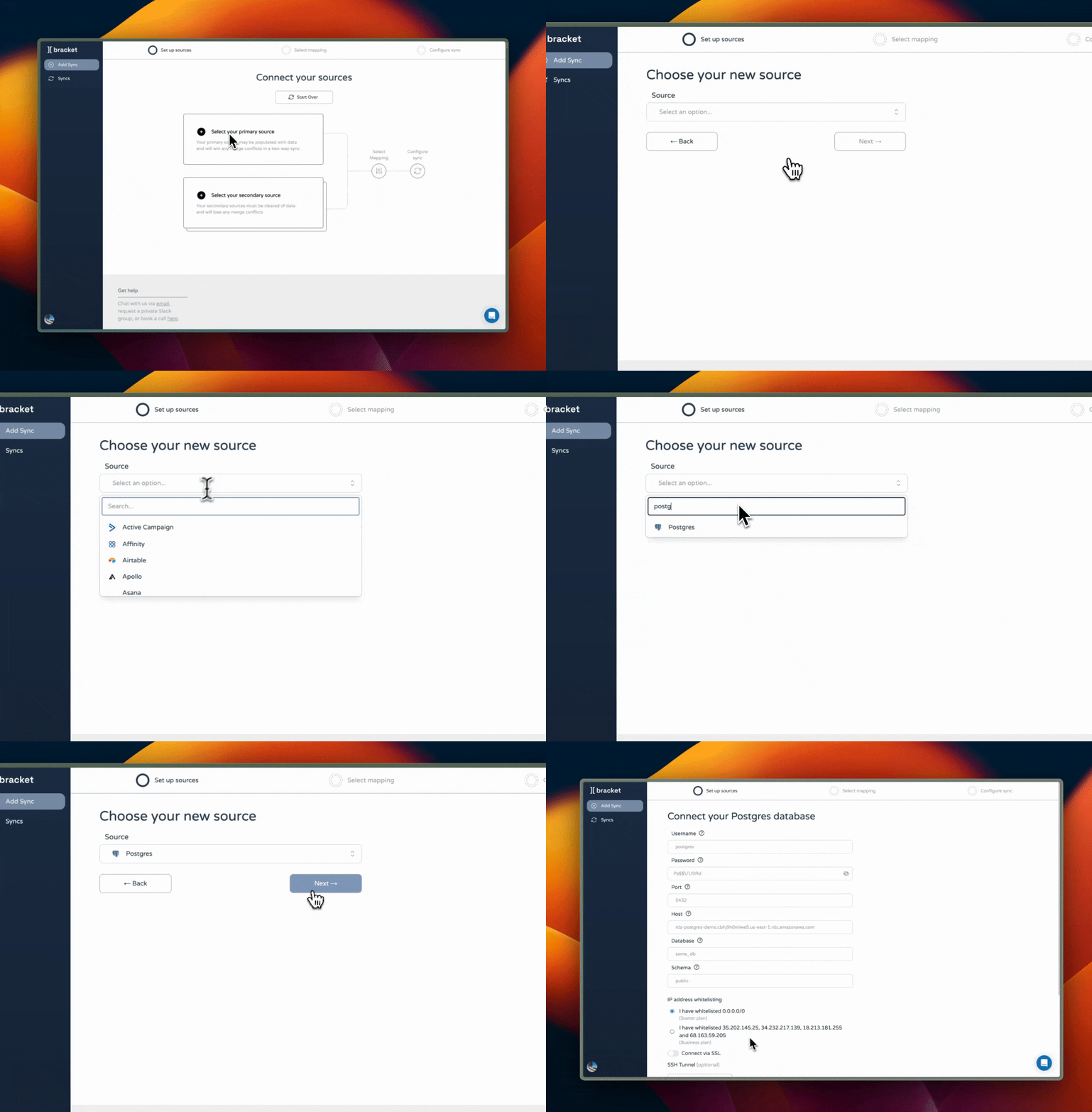
## 3. Enter connection details for each data source
On the web app, you'll need to enter certain connection details to get syncs running. See below for a summary of what information you'll need.
| Data source | What you'll need |
| ----------------------------------------------- | ----------------------------------------- |
| [Postgres](/connecting/postgres_connecting) | Connection string URI |
| [Salesforce](/connecting/salesforce_connecting) | A valid Salesforce account |
| [Hubspot](/connecting/hubspot_connecting) | A valid Hubspot account |
| [Airtable](/connecting/airtable_connecting) | An existing Airtable base |
| [MySQL](/connecting/mysql_connecting) | Connection string URI |
| [DynamoDB](/connecting/mongodb_dynamodb) | Access key, secret access key, and region |
| [MongoDB](/connecting/mongodb_connecting) | Connection string URI |
| [Google Sheets](/connecting/gsheets_connecting) | An existing Google Sheet |
 ## 4. Review the fields to be synced and choose sync direction
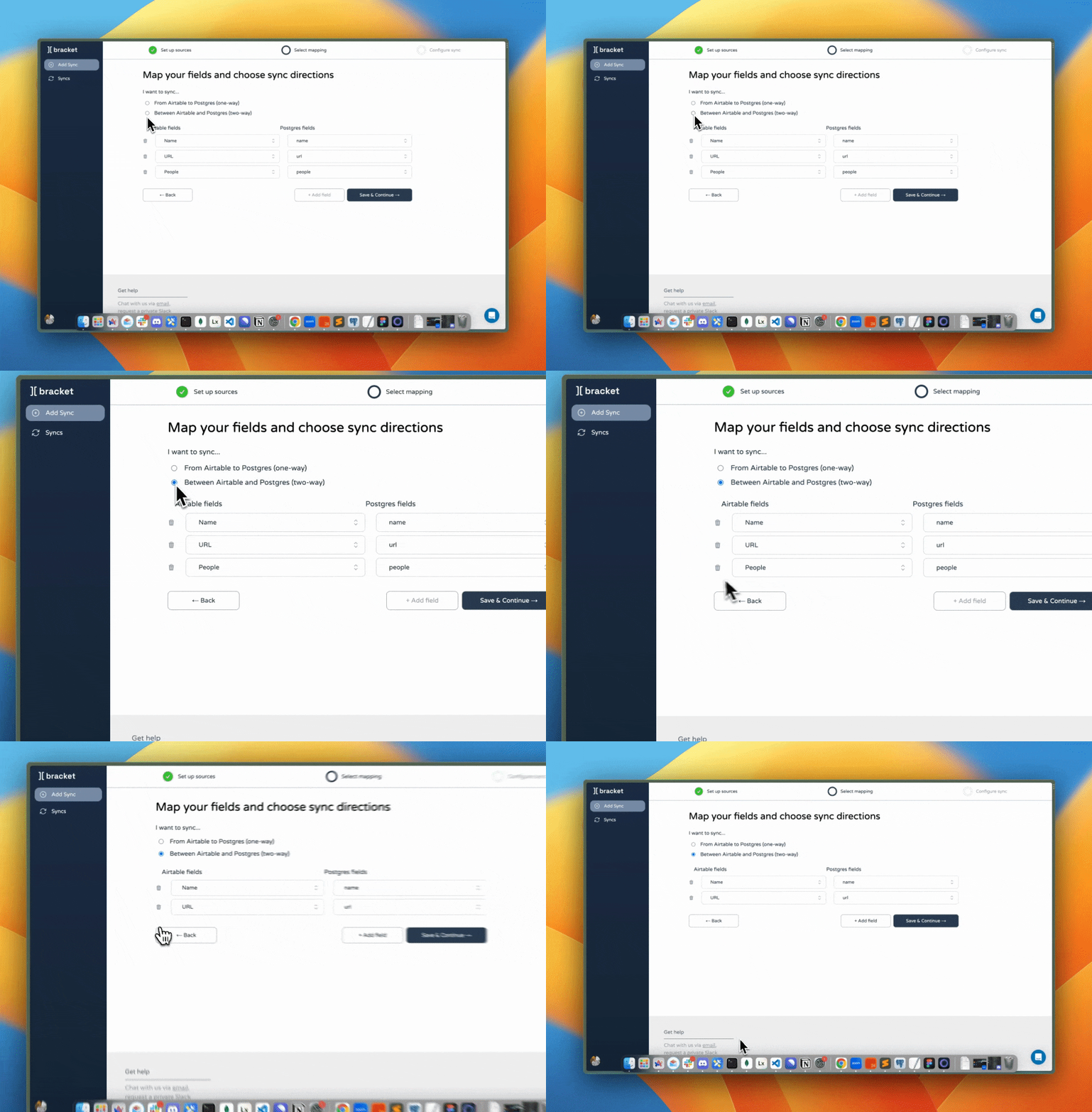
On this page, you can remove any fields that you do not want synced. While Bracket auto-maps
fields based on field names, you can also adjust the mapping as needed.
In the case that you have many fields that you want to modify (delete, add, edit etc), you can
manually upload a field mapping in the following file format:
## 4. Review the fields to be synced and choose sync direction
On this page, you can remove any fields that you do not want synced. While Bracket auto-maps
fields based on field names, you can also adjust the mapping as needed.
In the case that you have many fields that you want to modify (delete, add, edit etc), you can
manually upload a field mapping in the following file format:
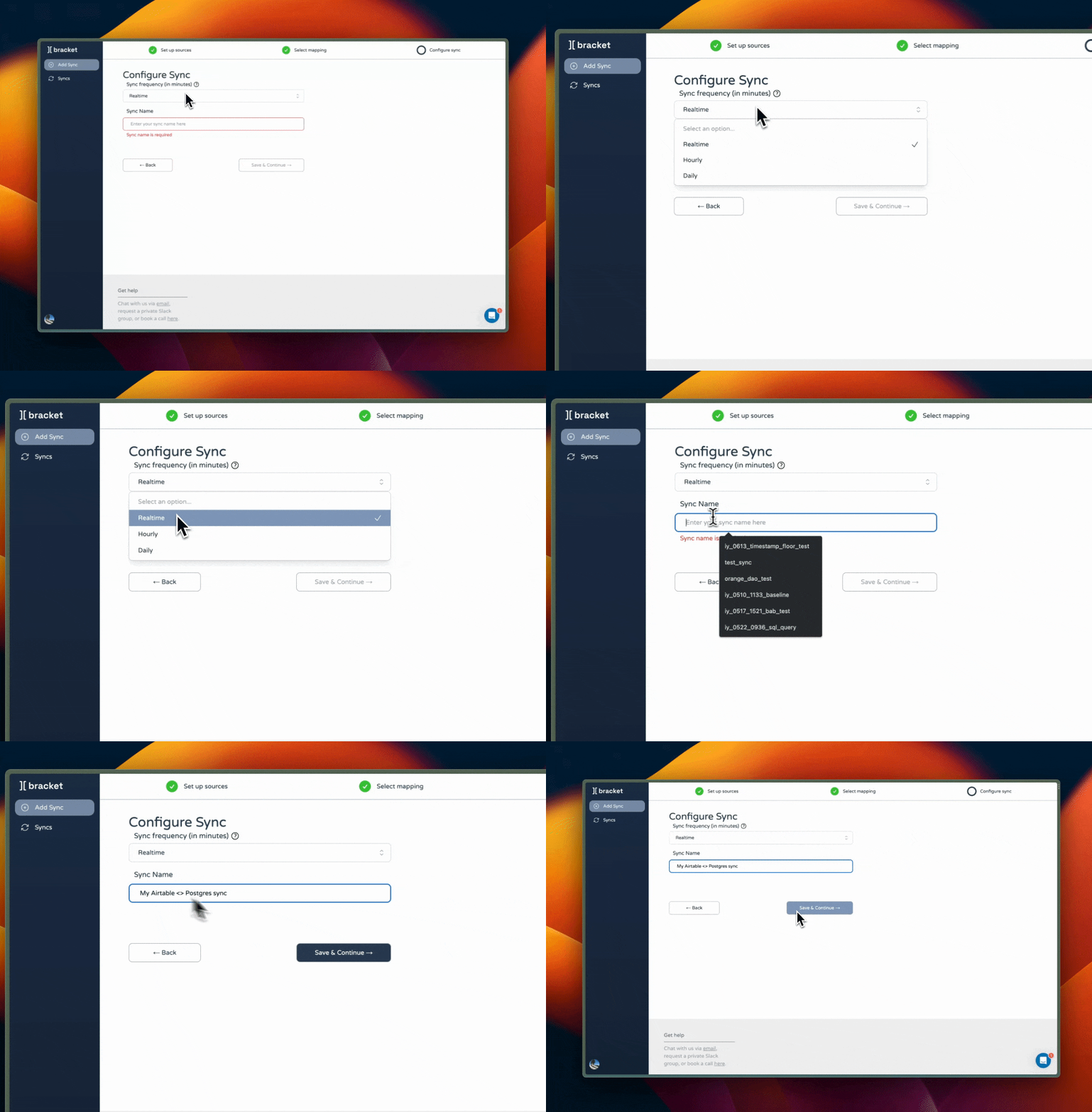
 ## 5. Name your sync and choose sync frequency.
 ## 6. Initiate sync
When you create your sync, your primary source will automatically seed the secondary source if the secondary source is empty of data.
If the secondary data source is already populated, the seed will fail. However, we strongly recommend clearing the secondary source before trying to run another sync job, otherwise you may duplicate data.
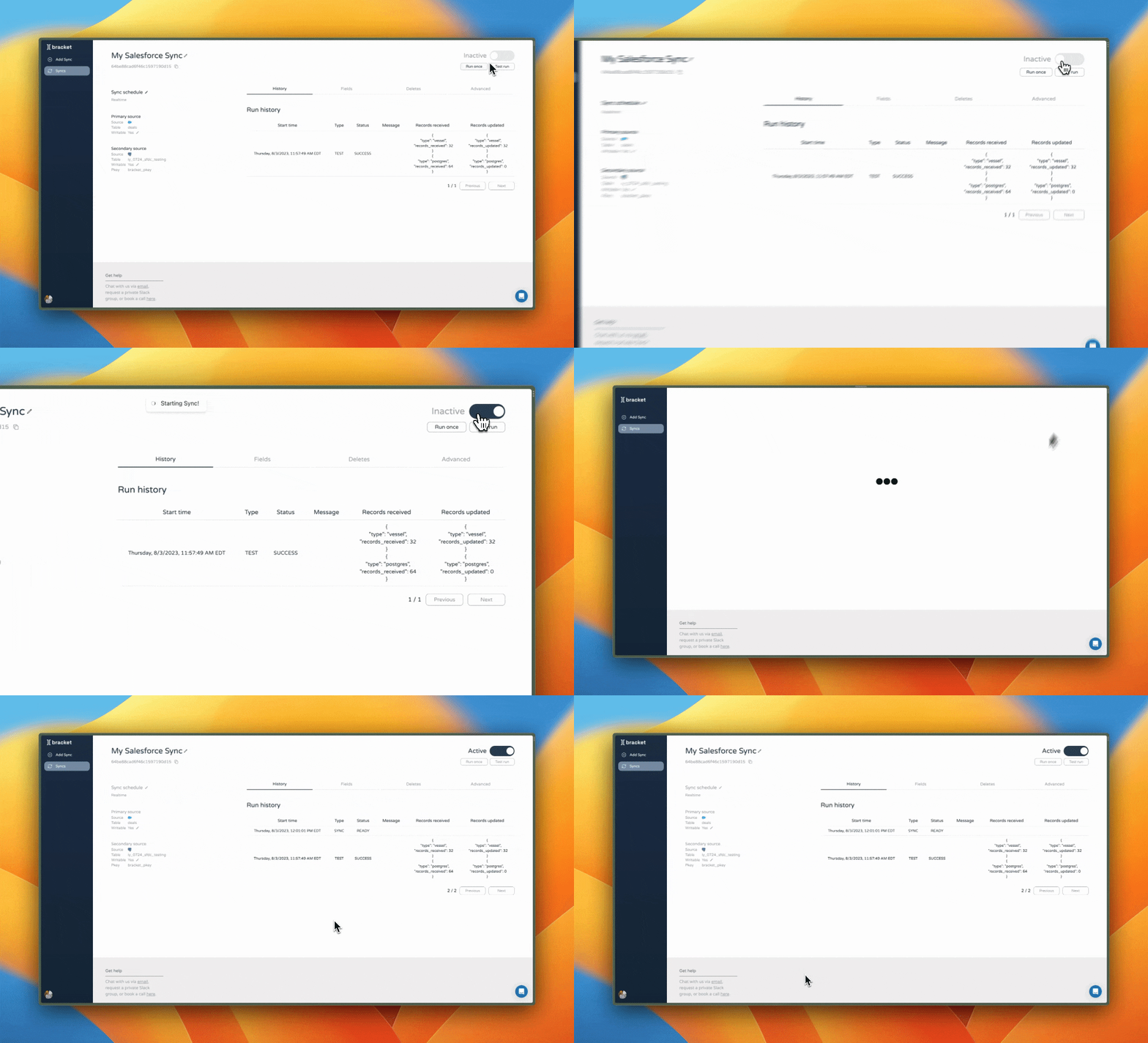
After that initial seed, to make sure the sync will work as expected, click "Test run," then
refresh the page to see the result of the test.
## 6. Initiate sync
When you create your sync, your primary source will automatically seed the secondary source if the secondary source is empty of data.
If the secondary data source is already populated, the seed will fail. However, we strongly recommend clearing the secondary source before trying to run another sync job, otherwise you may duplicate data.
After that initial seed, to make sure the sync will work as expected, click "Test run," then
refresh the page to see the result of the test.
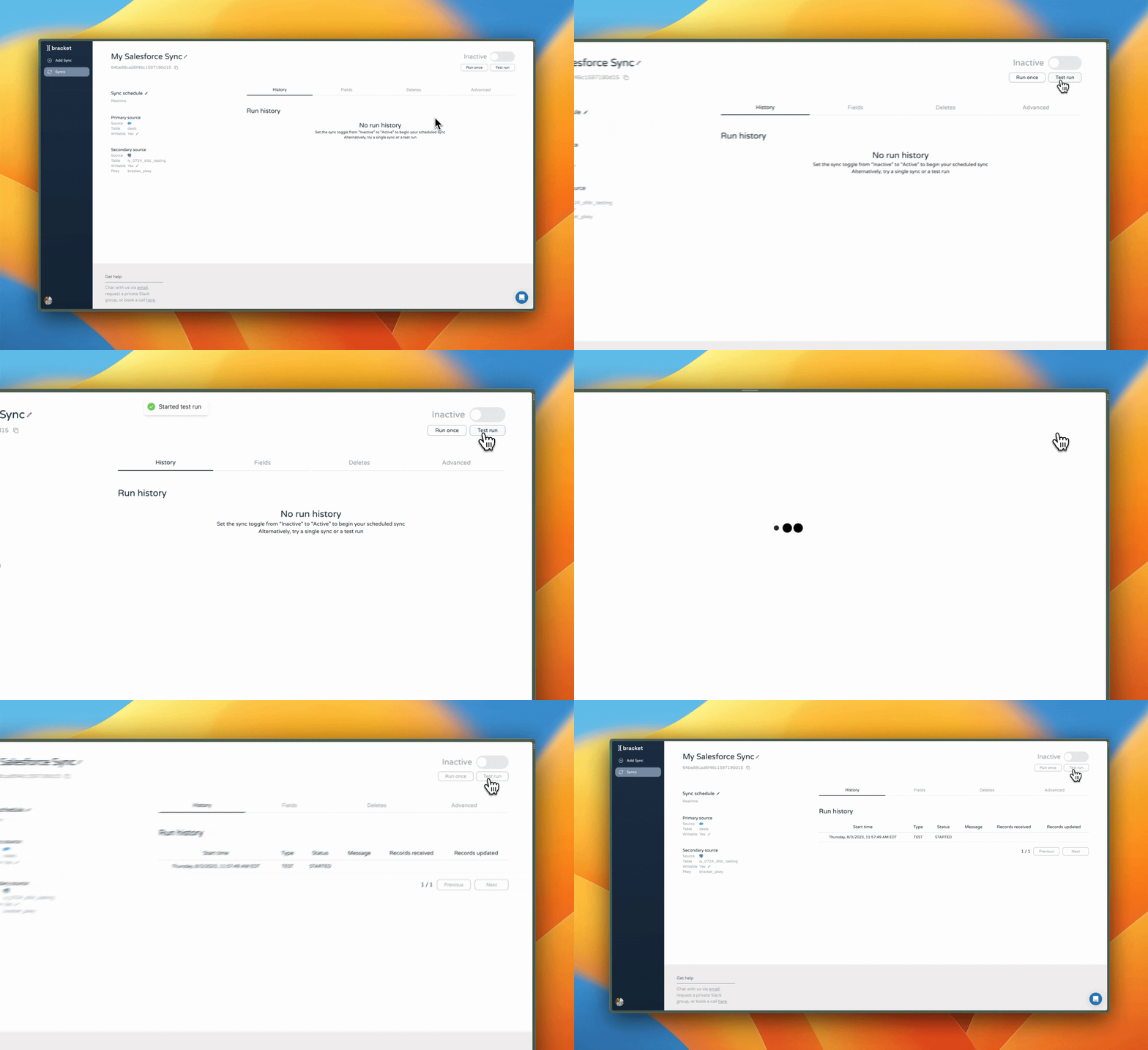 Then, click "Run once" or toggle the sync to `Active` to begin the sync. Refresh the page to
verify that a sync job has been scheduled.
Then, click "Run once" or toggle the sync to `Active` to begin the sync. Refresh the page to
verify that a sync job has been scheduled.